NetMirror for iPhone & iPad
Enjoy all eight streaming services on your iPhone and iPad, with no App Store and no jailbreak needed! Just add NetMirror to your Home Screen from Safari and it opens full-screen, exactly like a native app. Completely free, no subscription, no ads.
Two mirrors, if one is blocked, open the other: net27.cc net77.cc
- iPhone & iPad
- Runs in Safari
- Free · no ads
About
About NetMirror iOS
The iPhone and iPad version of NetMirror, opened from Safari and saved to your Home Screen, rather than installed from the App Store.
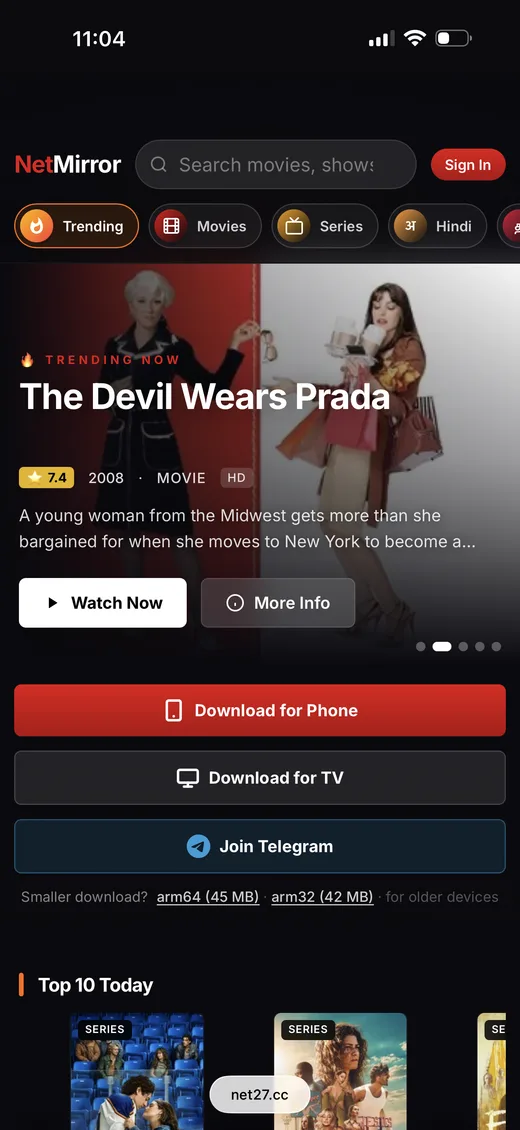
On iPhone and iPad, NetMirror works a little differently from Android, but it is just as easy. Apple’s App Store won’t list a single app that bundles several streaming services, so there is nothing to download at all, you simply open NetMirror in Safari. The whole interface loads right inside the browser tab: rows of posters, the service tabs along the top, and one search box that looks through every catalogue at once.
What makes it feel just like a real app is Apple’s handy “Add to Home Screen” feature. Just save NetMirror once and a tappable icon lands on your Home Screen, then open it from there and it launches full-screen in its own window, with no Safari address bar or tabs in sight. Press Play on any title and it streams in the built-in player, up to 4K where the source allows, and you can even use the iPhone’s own Picture-in-Picture and AirPlay controls to send it straight to your TV.
Behind it sit eight massive libraries, Netflix, Prime Video, JioHotstar, Apple TV+, Sony LIV, Zee5, MX Player and Crunchyroll, all in one searchable shelf. It opens in guest mode with no sign-up wall, it is completely free, and it runs without a single ad. There is no App Store account, no payment and nothing to jailbreak, it is simply a web page you have saved like an app.
Good to know: NetMirror’s web address is rotated every so often when networks block the old one. If the icon you saved ever opens a blank page, come back here for the current link, this page is kept up to date, then add it to your Home Screen again.
Features
Features built for iPhone & iPad
Running as a web app gives NetMirror a few real advantages on iOS that a downloaded app simply can’t match. Here is exactly what stands out on your iPhone and iPad.
The library
All eight services, one search
Netflix, Prime Video, JioHotstar, Apple TV+, Sony LIV, Zee5, MX Player and Crunchyroll share a single home screen, with one search box that looks through all of them at once.
New · Beta
Server 2 (Beta): a second source
New in this release: if a title won't play on Server 1, switch to Beta Server 2 from the Watch screen. It opens up more movies and shows, extra audio tracks and wider subtitles, with Fit / Fill / Stretch sizing too.
Install-free
No App Store, no jailbreak
There is nothing to sideload and no profile to trust. You open NetMirror in Safari and save it to your Home Screen, that is the entire setup, start to finish.
Native feel
Opens full-screen, like a real app
Launched from the Home Screen, it runs in its own window with no address bar or tabs, practically indistinguishable from an app you would download.
Always current
Updates itself, every time
Because it is a web app, you always open the latest build. There is no APK to re-download, no version to keep an eye on, and nothing to reinstall after an update.
On the big screen
Picture-in-Picture & AirPlay
Float a show into a corner while you reply to a message, or AirPlay it to an Apple TV or smart TV, all through the iPhone’s own native controls.
Setup guide
How to use NetMirror on iOS
iOS has no APK to install, so instead you just add the web app to your Home Screen once. It then opens full-screen, exactly like a downloaded app. It is only four quick steps and takes about a minute.
Open in Safari- 01
Open NetMirror in Safari
Launch Safari and open the NetMirror web app. The home screen loads in a couple of seconds, no sign-in to start.
 02
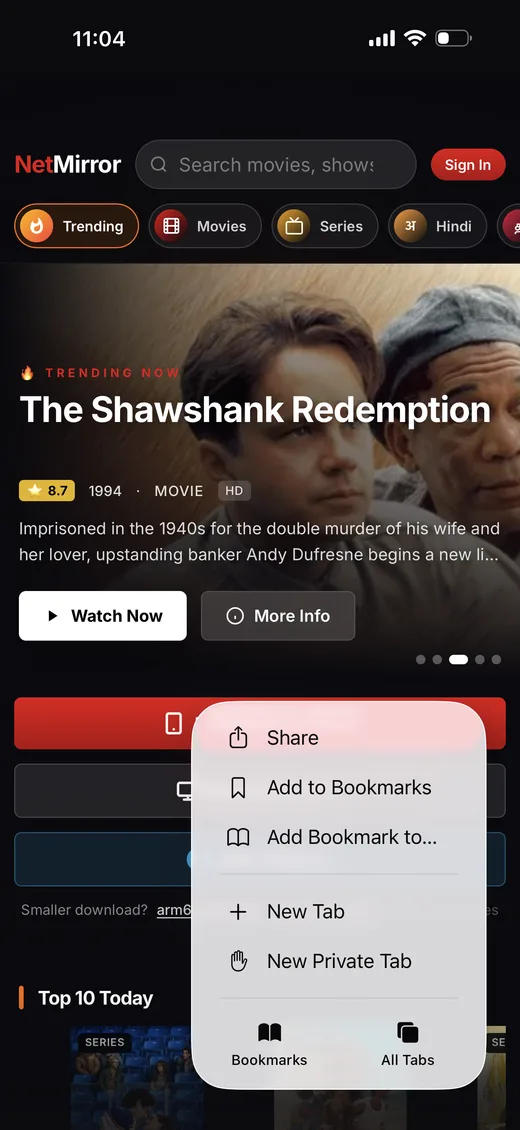
02Tap the Share button
Tap the Share icon in Safari’s toolbar, then scroll down the list of actions.
 03
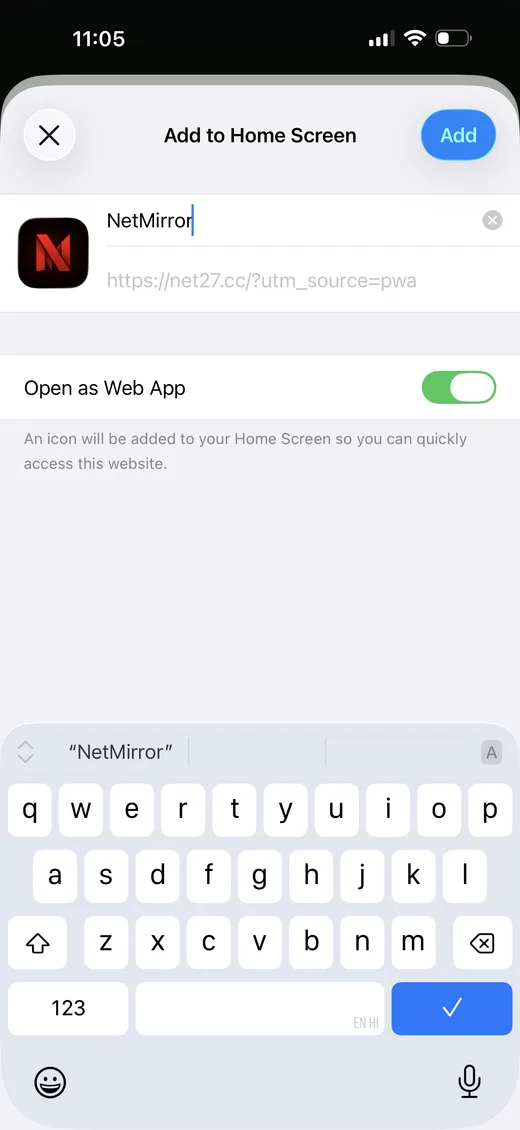
03Choose “Add to Home Screen”
Pick “Add to Home Screen”, keep “Open as Web App” on, then tap Add in the corner.
 04
04Open it like an app
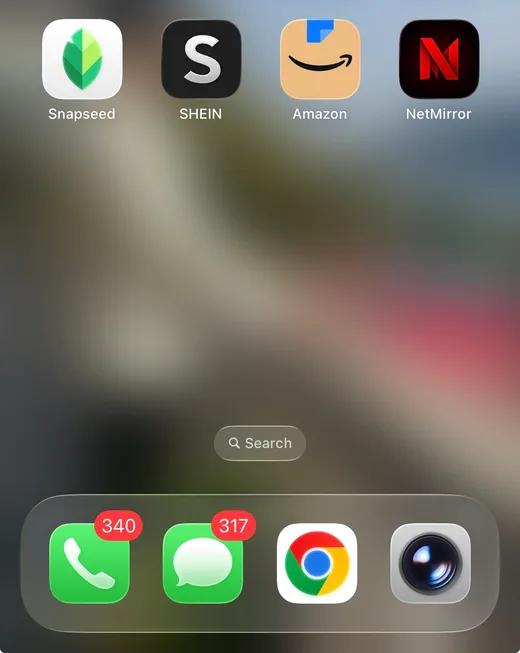
A NetMirror icon appears on your Home Screen. Tap it to launch full-screen, no Safari bars in sight.
Nothing is installed from outside the App Store, it is just a Home Screen shortcut to the web app, so there are no security prompts to worry about. The same library also opens on your Android phone and TV.
Why NetMirror
Why use NetMirror on iPhone & iPad
On an iPhone, the usual route is a Home Screen cluttered with streaming apps and a whole stack of monthly subscriptions. NetMirror folds all of that into a single free web page that you save just once.
The usual way
Separate App Store apps
- Install a separate app for Netflix, Prime Video, Apple TV+ and every other service.
- Stack up several paid subscriptions to watch across them.
- Every app eats storage and needs its own updates.
- Sign in to, and stay signed in on, each one.
- Sit through ads and “open in the app” nudges.
The NetMirror way
One free web app
- One web app covers all eight services at once.
- Completely free, no subscriptions to pile up.
- Nothing installed, so it uses next to no storage.
- Opens in guest mode, no accounts to juggle.
- No ads, and it updates itself automatically.
Troubleshooting
Common problems & fixes
Almost everything on iPhone and iPad sorts itself out in a single tap. Here are the few things people ask about, along with the quick fix for each.
- Can’t find “Add to Home Screen”
- Fix: Make sure you’re using Safari, not Chrome or another browser, the option only appears in Safari’s Share menu. Tap Share and scroll down the list to find it.
- It opens with the Safari address bar
- Fix: When you add it, keep “Open as Web App” turned on. If the icon is already saved, remove it and add it again with that toggle on.
- The saved icon shows a blank page
- Fix: The streaming address has rotated. Reopen this page for the current link, then add it to your Home Screen again.
- A video won’t play or keeps buffering
- Fix: Check your connection and lower the quality in the player. Turn off Low Power Mode, then close and reopen NetMirror if a title stays stuck.
- There’s no sound
- Fix: Flip the ring/silent switch, turn the volume up, and check the player isn’t muted. Some titles only carry their original-language audio.
- AirPlay or Picture-in-Picture won’t start
- Fix: Begin playback first, then tap the AirPlay or PiP control, both need the video already playing, and AirPlay needs your Apple TV or smart TV on the same Wi-Fi.
FAQ
NetMirror iOS, frequently asked questions
Quick answers to the things people ask most about NetMirror on iPhone and iPad.
Is NetMirror free on iPhone?
Yes, 100% free! There is no subscription, no account and no in-app purchases, and no ads anywhere in it.
Do I need to jailbreak my iPhone?
Not at all. NetMirror runs right in Safari and is saved to your Home Screen, so there is nothing to jailbreak and no configuration profile to install.
Does it work on iPad too?
Yes! The same web app runs on iPad and iPadOS exactly as it does on iPhone, with the layout adapting beautifully to the larger screen.
Why isn’t NetMirror on the App Store?
A single app that bundles eight streaming services simply cannot be listed on Apple’s App Store. So on iOS you just use the web app and add it to your Home Screen instead, a quick, one-time step.
Can I download titles to watch offline on iOS?
Offline downloads are part of the Android app. The iOS version streams online, and you can keep a show playing in Picture-in-Picture while you do other things, but saved downloads need the Android app.
Can I AirPlay it to my TV?
Yes! Just start playback, then use the AirPlay control to send it straight to an Apple TV or an AirPlay-compatible smart TV on the same network.
Is it safe to use without the App Store?
Absolutely. Nothing is installed on your device, it is simply a Home Screen shortcut to a website, so there are no app permissions or security profiles involved.
The Home Screen icon stopped loading, what now?
No worries, the streaming address changes from time to time. Just reopen this page for the current working link and add it to your Home Screen again.
The bottom line
Conclusion
In conclusion, NetMirror brings all eight streaming services to your iPhone and iPad, opened in Safari and saved to your Home Screen, where it runs full-screen just like a native app. No App Store, no subscription, no ads. Add it once and start watching, you will wonder how you ever managed without it!
Free · iPhone & iPad · Also on the Android app and TV.